In short
- Docker Desktop keeps every image, container, volume and build cache in one disk image, Docker.raw, inside ~/Library/Containers/com.docker.docker.
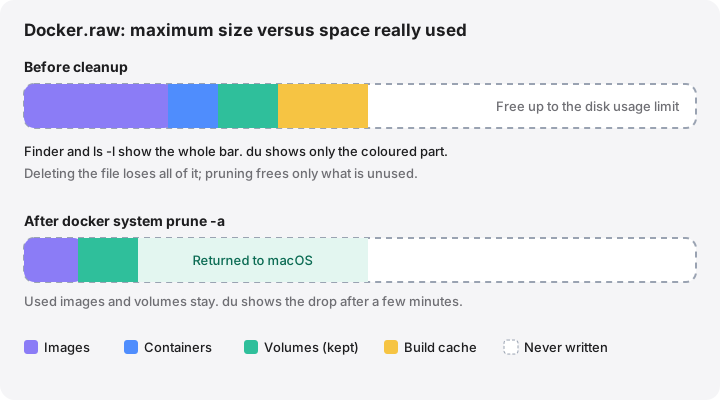
- Docker.raw is a sparse file: Finder and ls -l show its maximum size, while du shows the space it really uses.
- Shrink it from inside Docker with docker system prune, not by deleting the file. Freed space returns to macOS within a few minutes.
- docker system prune keeps volumes unless you add --volumes, and even then it removes only anonymous volumes.
- Lowering the disk usage limit or using Clean up data erases the disk image, so treat both as a last resort.
How to shrink Docker Desktop’s disk image on a Mac
- Measure the real size. Run du -h ~/Library/Containers/com.docker.docker/Data/vms/0/data/Docker.raw to see the space actually used, not the maximum.
- See what uses the space. With Docker Desktop running, run docker system df to list images, containers, local volumes and build cache, with what is reclaimable.
- Clear the build cache. Run docker builder prune. Builds rebuild the cache as needed; the next build is slower.
- Prune unused containers, networks and images. Run docker system prune -a. It removes stopped containers, unused networks, all images not used by a container and unused build cache. Volumes are kept.
- Review volumes separately. Run docker volume ls, back up any data you need, then remove volumes you no longer use with docker volume rm.
- Wait, then check again. Give Docker Desktop a few minutes to return freed blocks to macOS, then run du -h on Docker.raw again.
Docker Desktop for Mac runs Linux containers in a small virtual machine, and that machine stores everything in one disk image file called Docker.raw: images, containers, volumes and build cache. The file can grow to tens of gigabytes. The fix is not to delete it but to prune from inside Docker; Docker Desktop then returns the freed space to macOS.
As of October 2026 this applies to current Docker Desktop releases on macOS 27 Golden Gate, 26 Tahoe, 15 Sequoia and 14 Sonoma.
Where Docker.raw is, and how big it really is
By default the disk image is here:
~/Library/Containers/com.docker.docker/Data/vms/0/data/Docker.raw
If you have moved it, Docker Desktop › Settings › Resources › Advanced shows the current location.
Docker.raw is a sparse file. Its logical size is the maximum the disk image may reach, but only the blocks Docker has actually written take space on your Mac. Finder and ls -l show the maximum, which is why the file can look alarming. To see the real figure:
cd ~/Library/Containers/com.docker.docker/Data/vms/0/data
ls -klsh Docker.raw
du -h Docker.raw
In the ls -s output, the first number is the space actually allocated; the size column shows the maximum. du reports only the allocated space. Docker’s own Mac FAQ uses the same ls -klsh check.
See what is using the space
With Docker Desktop running, ask Docker for a breakdown:
docker system df
docker system df -v
The first command lists Images, Containers, Local Volumes and Build Cache, with a total size and a RECLAIMABLE column for what is not in use. The -v version lists every image, container and volume individually, which helps you spot one forgotten 10 GB image or a large volume from an old project.
Clean up, from gentle to thorough
All of these commands delete permanently: there is no Trash for Docker objects. Images can be pulled or rebuilt again; volumes cannot.
Build cache
If you build images locally, the build cache is often the largest item.
docker builder prune
It asks for confirmation, then removes unused build cache. Add --all for a more thorough clean. Your next builds take longer while the cache refills.
Stopped containers, unused networks and images
docker system prune
docker system prune -a
Plain docker system prune removes stopped containers, networks not used by any container, dangling (untagged) images and unused build cache. Adding -a also removes every image not used by at least one container, which usually frees the most. Anything you need later is pulled or built again. See Docker’s pruning guide and the docker system prune reference.
Volumes: review before you remove
Volumes hold data that cannot be rebuilt, such as a local database. That is why Docker never removes them by default.
docker volume ls
docker volume rm <name>
docker system prune --volumes adds only anonymous volumes not used by any container. docker volume prune behaves the same way; docker volume prune --all also removes named volumes that no container is using. Back up anything you care about first.
| Command | Containers | Images | Build cache | Volumes |
|---|---|---|---|---|
docker system prune |
Stopped | Dangling only | Unused | Kept |
docker system prune -a |
Stopped | All unused | Unused | Kept |
docker system prune -a --volumes |
Stopped | All unused | Unused | Anonymous, unused |
docker volume prune --all |
— | — | — | All unused |
When the space does not come back
Pruning frees blocks inside the virtual machine, and Docker Desktop hands them back to macOS in the background. Docker notes that this can take a few minutes. Check again with du -h Docker.raw. If the number has not moved after a while, quit and reopen Docker Desktop.
Finder keeps showing the file’s maximum size whatever happens inside it, so judge progress with du, not Finder.
Cap or move the disk image
In Settings › Resources › Advanced, recent versions call the setting Disk usage limit (older versions: Disk image size). It sets the maximum the disk image may grow to. Docker’s Mac FAQ warns that reducing the maximum deletes the current disk image, so every image, container and volume inside goes with it. Prune first, export what you need, and only then lower it.
The same pane has Disk image location. Use its Browse button to move Docker.raw to a larger internal volume or an external SSD. Do not move the file in Finder: Docker Desktop can lose track of it.
The reset option
Docker Desktop’s Troubleshoot screen (open it from the whale menu in the menu bar, or from the question mark icon near the top right of the Dashboard) has Clean up data, called Clean / Purge data in older versions. According to Docker’s troubleshooting page, it destroys all local containers and images while preserving your settings. Since volumes live in the same disk image, assume they go too. Use it only when you are happy to start over.
Reset to factory defaults, in the same menu, also resets all settings.
Alternatives that manage disk space differently
- OrbStack stores its containers, images and Linux machines in
~/Library/Group Containers/HUAQ24HBR6.dev.orbstack/data. Its documentation describes dynamic disk management, so usage grows and shrinks as needed. Clean up from OrbStack or with the samedockercommands; deleting the data file loses everything inside. - Colima is a free command-line runtime that keeps its virtual machines in
~/.colima.dockerprune commands work the same way,colima pruneclears Colima’s cached downloads, andcolima deleteremoves a profile with all its data.
Both use the standard docker CLI, so everything above about pruning, volumes and build cache still applies.
How MoreRoom helps
MoreRoom’s free version finds Docker Desktop’s disk image and labels it “Review first”, with the reminder to prune rather than delete the file. When you choose to clean it, MoreRoom runs Docker’s own docker system prune --all --force: stopped containers, unused networks, unused images and build cache are removed, and volumes are kept. That command is permanent and labelled as such. MoreRoom also recognises OrbStack and Colima data, labelled “Review first”.
MoreRoom does not delete Docker.raw, remove volumes or change Docker’s disk usage limit. Pro adds the Collector, to clean several items in one go, and Goal mode.
Frequently asked questions
Can I delete Docker.raw?
You can, but you lose every image, container and volume inside it, and Docker Desktop creates a new empty file. Prune from inside Docker instead. If you really want a fresh start, use Clean up data in Docker Desktop’s Troubleshoot menu, which keeps your settings.
Why does Finder say Docker.raw is much larger than Docker reports?
Docker.raw is a sparse file. Finder and ls -l show its maximum size, set by the disk usage limit, while du and ls -s show the blocks actually written to your disk.
Does docker system prune delete my volumes?
Not by default. With --volumes it also removes anonymous volumes not used by any container. Named volumes, such as a database volume you created, are removed only by docker volume prune --all or docker volume rm.
Why didn’t my free space increase after pruning?
Docker Desktop returns freed space to macOS in the background, which can take a few minutes. Check again with du -h on Docker.raw. If nothing changes, restart Docker Desktop. Space is also only freed when images are actually deleted, not just untagged.
Is it safe to lower the disk usage limit?
Only if you can lose what is inside. Docker’s Mac documentation warns that reducing the maximum size deletes the current disk image, with all its images, containers and volumes.